- DGS Sports Installation
- DGS License
- DGS Reports
- Racing Inquiries
- DGS Manager
- DGS Lines Manager
- DGS Game Importer
- Sending Lines to Donbest
- SportsWebsite
Sports Installation
-
Where do I get the DGS Installer and Installation Instructions from?
Both can be found on the NextCloud platform, folders: Public\DGS 4.0.3.37 and Public\documents (DGSInstaller 4.0.3.37.exe).
-
How do the applications know which database to look for?
The applications get the information from the encrypted file called dgsdata.dat which is created using the tool called dgsconfig.exe (first tab).
-
Why is my Lines Manager working well but my DGSManager is giving me an error and not login in?
The Lines Manager is a direct connection application which means that it accesses the database directly, on the contrary, the DGSManager uses a service (ISAPI) in order to access the database, so you might want to check the ISAPI configuration by using the dgsconfig.exe tool (second tab) but also you need to ensure that the ISAPI is installed and working well on a web server, you can confirm that by browsing the ISAPI directly for example http://192.168.30.116:3500/DGSServerRSvc.dll. The database information where it connects must be displayed along with a connection succeeded message.
-
When I execute the DGSManager application, I get an error that says: Error accessing remote service. Socket Error #11001 Host not found. What configuration is missing?
The ISAPI where the DGS Manager connects to is not setup well, you can fix this by opening dgsconfig tool, going to the second tab and filling the Server text box with the right URL, for example http://192.168.30.116:3500/DGSServerRSvc.dll and finally saving the configuration.
-
What configuration is missing when my DGS apps show this error: "Invalid Phone Line"?.
This error can be caused by two misconfigurations, the first one is a missing phone line in the DGS configuration files, to check if this is your case, open the dgsconfig.exe tool and go to the second tab, if the phone line is empty, type a valid phone line and hit save. The second misconfiguration is on the same tool and the same tab, we are talking about the Local File Path textbox, if there is an invalid path entered there and no configuration files are found on that path, the system will display this error of Invalid Phone Line, so to fix it just leave this textbox blank.
-
What are the DGS system dependencies?
In order for the reports to work, the Crystal reports runtime 8.5c and the MSXML 4 must be installed.
In order for the dongle to be recognized by windows, you need to install a driver: DGSUSBInstaller.exe (there are two versions available depending on the windows version you need one or the other). These tools and some more can be found in the folder Public/tools of the DGS own cloud. -
How can I check the DGS version my database is on?
The best way to check the DGS version you have is by running this query on the DGS database: select DbVersion from SYSTEMVERSIONINFO.
-
The Win32 Services (Charting, Bet Ticket, Notifications, etc.) are unable to start, what should I check for?
These are the key points to consider:
1. The services create a log file on the folder they reside. You can find more details about the error on that log.
2. It is required to register the private IP of the server where the services reside before starting them. To do it open the DGS Manager and go to Maintenance/System Preferences/System Services Registration.
3. The configuration files (dgsdata.dat, dgsservices.ini, dgsconfig.ini) are missing or misconfigured - They must be in the same folder as the services-.
4. The services need to establish a connection with the license service so they will not start if the license service is down or something is blocking the communication between them. -
I'm getting the error: "Duplicate login, your user account is already logged into this application" when trying to log in into an application. How can I release that stuck session?.
You can release a session on the DGS Manager application system menu, logged users option, by right-clicking on the user and pressing the release option.
DGS License
-
Where on the Database do I set up the License server IP?
Depending on the version:
Version 4.0.3.8:
Fields LicenseServerIP, LicenseServerPort of the table SYSTEMPREFERENCESMANAGER
Version 4.0.3.37:
Fields LicenseServerIP, LicenseServerPort of the table SYSTEMPREFERENCESMANAGER
Field IP, Port of the table SYSTEMLICENSESERVERS -
I'm getting the error "Not valid License Installed" when opening my apps, what should I check for?
There are several things you could check:
1. A firewall could be blocking the communication between your computer and the license server, so please check that your windows firewall or antivirus firewall is down or the DGS License port is open (the default port is 1516)
2. The license service could be down, check that the win32 service called DGS license service is up and running on the license server machine.
3. Restart the license service, if you get an error check the log files that it creates, depending on the DGS version these logs are on:
version 4.0.3.8
The logs reside on the same folder as the DGSLicenseservice.exe (folder where the service is installed)
version 4.0.3.37
The logs reside on "C:\ProgramData\DGS\DGSLicenseService" -
How do I know when my DGS license is going to expire?
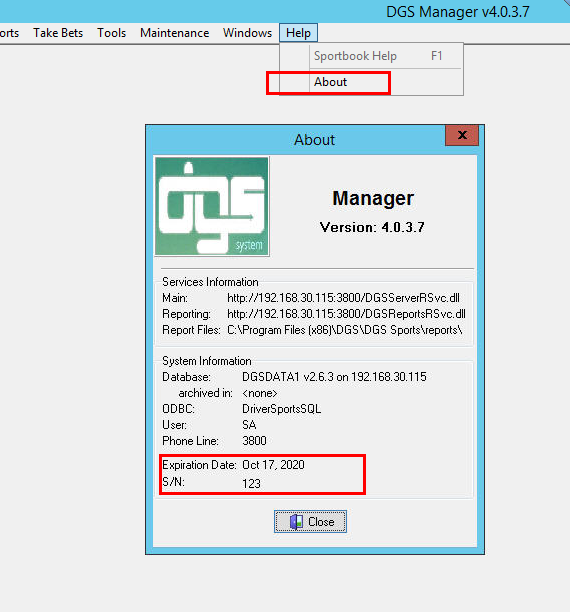
The license expires the 17th of every month; the system starts showing warnings ten days before that.
Also you can check you DGSManager or LinesManager appications on the Help/About Menu:
-
What can I check for if the DGS license service doesn't start?
1. Check that you have the right version of the DGSLicenseSvc.exe:
Version 4.0.3.2 is the correct one if your system is on the version 4.0.3.8
Version 5.0.1.0 is the correct one if your system is on the version 4.0.3.37
2. Check that your license server IP and port are set up well in the database:
Depending on the version:
Version 4.0.3.8:
Fields LicenseServerIP, LicenseServerPort of the table SYSTEMPREFERENCESMANAGER
Version 4.0.3.37:
Fields LicenseServerIP, LicenseServerPort of the table SYSTEMPREFERENCESMANAGER
Field IP, Port of the table SYSTEMLICENSESERVERS
3. There is a log file where you can look for errors:
For version 4.0.3.8: The log is in the same folder as the service.
For version 4.0.3.37: The log is in C:\ProgramData\DGS\DGSLicenseService
Reports Installation
-
I'm getting: "Acess denied" error when running any report on the DGS Manager/ Lines manager application.
The system is unable to access the folder of reports (DGS folder/reports).
The windows user that is trying to run the reports needs Full Control permissions on the folder reports. -
I'm getting: "Can't save" error when running any report on the DGS Manager/ Lines manager application.
The system is unable to write on the folder reports.
The windows user that is trying to run the reports needs Full Control permissions on the folder reports. -
I'm getting: "Invalid directory" when running any report on the DGS Manager/ Lines manager application.
The system is looking for the reports in an invalid directory; it looks for the path of the reports in two locations:
1. DGSconfig.exe tool/second tab (applications) text field: Reports Path.
2. The 32-bit ODBC called DriverReportsXML (ODBC Data Source Administrator -
I'm getting: "File not found" when running any report on the DGS Manager/ Lines manager application.
Check that the rpt files are in the folder reports if they are missing copy them there using the DGS installer.
If the rpt file of the report you are running is in the right folder (reports folder on the DGS directory) then you are probably missing a '\' at the end of the path of the "Reports Path" on the dgsconfig.exe tool/second tab(applications). -
I'm getting: "Server has not yet been opened." when running any report on the DGS Manager/ Lines manager application.
There are two main causes for this error:
1. The Crystal Runtime Redistribution 8.5c is not installed.
2. The 32-bit ODBC called DriverReportsXML is not created in the ODBC Data Source Administrator/tab system DSN
If the previous options are checked and the error persists you must consider:
a. If the name of the ODBC is correct if it is not misspelled.
b. Open the ODBC Data Source Administrator, select the ODBC DriverReportsXML, click configure and go to the Advanced tab and UNcheck the "required User Id/Password" option. -
Why is the export option not working on my DGS reports? When I click on it, it doesn't do anything.
We recommend having two crystal runtimes installed: CrystalRuntimeSetup1.3 and SetupCrystalRuntime85c
If the reports are being displayed then it means at least one crystal runtime is installed.
Go to Windows Add or remove programs and look for the word crystal, it is very likely that you have crystal reports 8.5c already installed.
For the export to work you need to install the crystal runtime 1.3 too, you can download it from our nextcloud/public/tools.
Racing
-
How can I setup the Feed Client to send email notifications when a message arrives?
The first thing to take into account is that you need to have the right version of this application, The versions that are able to send notifications are: File version: 1.0.6557.18934 or file version: 1.0.7068.25101
After checking the version you need to disconnect Feed Client, go to SETUP button > email Config and enter the necessary information. It only works with private mail servers, if you try to set it up with google, for example, it will display an error every time a message arrives. -
The Horse Rebates process is not paying correctly, what could be happening?
DGS REBATES RULE: No rebate will be paid on a bet where the payout odds are 2.20 or less, this rule applies for all wager type.
-
How can I re-apply racing results, after having received a message that a result was sent wrong?.
In order to fix race’s results after you received a message thru the DGS Feed Client you need to open the Racing Manager, go to races console (Races > Console> Today (or other date as necessary)). Navigate to the track/race and click the “results” button in the bottom panel.
- Click “Unscore Tickets”.
- Confirm the race status is “Off”.
- Disconnect and reconnect the feed client.
- Confirm the race is now “Complete” with corrected results received via the feed. -
How can I grade racing bets manually?.
If for any reason, you need to manually grade horses’ bets, follow the next steps:
In your Racing Manager open the Races Console (Races > Console> Today (or other date as necessary)). Navigate to the track/race and click the “results” button in the bottom panel.
- Confirm the race has status “Off”.
- Click “Unscore Tickets” – if race already had results.
- Click the Edit Results button and proceed to enter the results and payouts for each wager type – All based on $2.
- Click on “Set Status Complete”.
- Click on “Score Tickets”.
-
A Player has a PICK bet with a Scratched horse, and the system graded the bet as a loss?.
For Picks, the system will only pay the player for a scratched horse involved in the bet if the track offers a CONSOLATION payout for said horse. Otherwise, the scratched horse is considered as a valid pick and the bet outcome will always be a loss.
-
Player has a horse bet that is supposed to be a winner but the system graded it as a loss?.
- This is most likely because the results are wrong so you may need to request for the results to be resent if they are from a previous day otherwise just Unscore the race and disconnect and reconnect the feed. It might also be because of the relation between the amount risked by the player vs the payout for the bet sent by the track. If the player risks a large amount and the track pays a relatively small amount, the system will consider the bet a loss, since the player is actually losing money by placing that bet… even though the player chose the correct horses. .
-
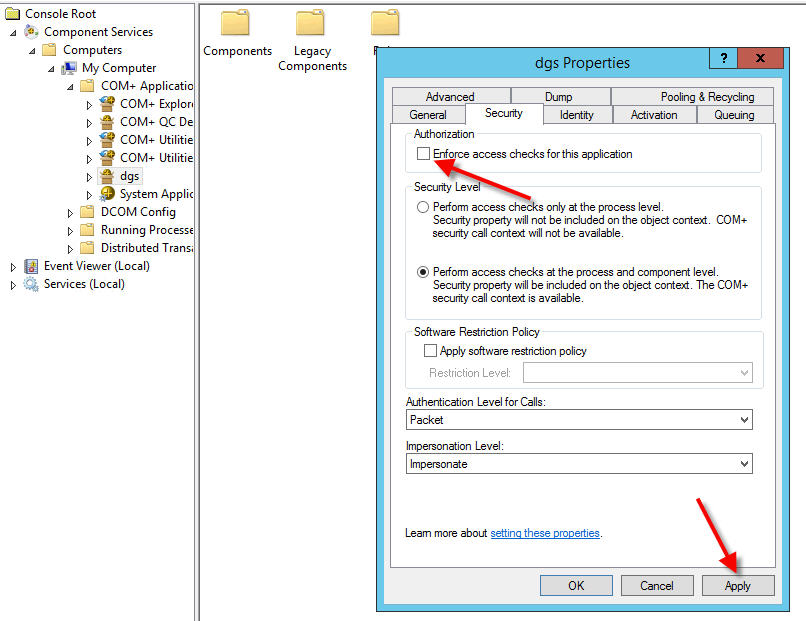
I'm getting the error: "Error Getting information from localhost: Access is denied" when opening the Racing Manager.
- Go to the windows component services , look for the DGS complus application, right click on it and go to the security tab, uncheck the Enforce access checks for this application and click apply. Restart the com+ and try again.
DGS Manager Inquiries
-
How can I give an agent the right to move lines?
In the Dgs Manager go to Agents, choose the agent, go to Settings on the Agent Form and assign the agent a line type. Once this is done, a link -agent lines- will appear when the agent logs into the agent site.
-
When closing the week, how do I stop the balance from carrying over from an Agent to the Distibutor when there is a 4-tier hierarchy.
On the DGS Manager, Agent form there is an option called Don't Xfer Player Activity, this option needs to be checked if you don't want the players to transfer their balances to the distributor or uncheck if you want the players to zero out.
-
How to increase our minimum bet on parlays?
There are two different places you can set a limit for parlays.
One is in the LIMIT PROFILES where you set limits per bettype per Game type and the other is under PROFILES in the Parlays tab where you set the Max Risk. -
How can I release a player from the system when getting the error (player is already on a call)
DGS Manager > System, Players on Call, Release.
Lines Manager Inquiries
-
I’m getting an error ‘Could not complete execution’ when grading due to another grading process stuck.
There is no way to release that stuck process from the DGS applications, you need to run a script on the database: Delete from SystemProcessFlag
-
How can I grade a game?
Take into account that to set a game as final, it must belong to the current open week and it can have a future date.
Open your Lines Manager application and go to the SPORT the game you want to grade is on, right-click on the game and select the option game status, there you can fill the score and set the game as final.
Finally, close that pop-up window and press control+G -
How can I un-grade a game?
Open your Lines Manager application and go to / Tasks / Ungrade Games, select date and sport, choose the game and click ungrade.
-
When trying to grade a game or change a pitcher I see the error: ‘There still pending a pitching change on this game’
This means there is a pitching change process that was not completed successfully, so you need to re-apply the pitching change. For this open the Lines Manager application, select the game with the error, right click on it and select the option called re-apply pitching change.
-
How can I grade a baseball game as a short game?
In the Lines Manager, select the game, right click on it select game status, check the option SHORT GAME. The system will automatically grade the best according to the option you have selected in the profiles for the short game.
-
How can I perfom a pitching change?
When an MLB game has wagers already, if you need to change the pitcher it will warn you and will ask you for the new odds, this process is called pitching change.
Game Importer
-
What is the DonBest free feed URL?
http://xml.donbest.com/v2/rawschedule/
-
Error instantiating IServerXMLHTTPRequest2: Class not registered, ClassID: {88D969C6-F192-11D4-A65F-0040963251E5}
In order to fix this problem install the MSXML tool that you can find in the DGS Owncloud/public folder/tools.
-
How can I change the sport of a game before importing it.
The Sport and League can both be changed with the LEAGUE option but ONLY if the League is created under the desired SPORT: Choose event by clicking the sport or league column (depending which you want to change) > choose sport or league from dropdown box > Click Set. Then import.
Check to see that the event was imported into the chosen sport/league combo. -
I'm getting 'The operation timed out' Error when trying to import Games.
If The Donbest Url (http://xml.donbest.com/v2/rawschedule/) displays the games XML fast on a browser and the ISAPI (http://192.168.xx.xx:xxxx/DGSServerRSvc.dll) is answering too when browsed; then the problem is likely to be that the Enable Proxy Settings check is enabled with an invalid IP address on the Donbest Game Importer/Import Games form
Lines Publisher
-
Why are my lines not being sent to Donbest?.
These are some of the reasons:
1. The service in charge to send the lines (DGSLinesPublisher) is stopped. Right-click on it and hit start.
2. The server where the service is installed has no internet connection.
3. The IP of the server where the Lines Publisher service is installed changed. In which case you need to authorize the new IP (check how to do it below in this same section).
4. The settings for the line publisher in the DGS Manager are wrong or missing (Check them below).
5. You can check if the lines are being sent by checking the Line Publisher log file (in the same directory as the service) or in the database by running this query: select * from LinePubQueue with (nolock)(this table should remain empty or getting empty as the lines are sent). -
Which is the service in charge of sending lines to donBest?.
It is a Windows 32 bits service called DGS Lines Publisher
-
Where do I set it up? and what settings are required?.
You can change its the settings on the DGS Manager/Maintenance/Line Subscribers:
The type needs to be Donbest, the Linetype is required (it's the linetype to be sent to Donbest), it needs to be enabled.
In the Configuration Data Button you will find: Line: It tells the service to send either a period or the full game line.
username and password: you get those from Donbest.
ServiceURL: http://services.donbest.com/puncher/linespuncher.asmx
Delay: It must be set to zero always.
Sports WebSite
-
The sign up page is showing the error: "There are no book settings to create a SignUp with this WebSite" when trying to create a new account.
The first thing you should check is the default.skin in the folder WebClient4\App_Themes\Classic (Classic in case you use our default theme), open the file and go to:
%-- Controls For SignUp --%>, look for the line:
< input type="hidden" value="BOOK" name="Prefix" />
The value (in this example BOOK) indicates the prefix link to your book. So now knowing the prefix go to your DGS Manager/Maintenance/Games Configuration/Books
Check that the book you want to be linked to this website signups has that prefix, if not hit edit and add the prefix.
Take into account that if the Consecutive is 1 and the Prefix is BOOK, the first player created on the signup page will be: BOOK1 -
When login in to the website, it shows the message: System began a maintenance Cycle. Try again later.
This error is shown when the web client application can't establish a connection with the DGS remoting service (DGS win32 service). You can check which DGS service your site is trying to contact by opening the web.config file and checking the line:
< wellknown type="DGSinterface.IPlayerFactory, DGSinterface" url="tcp://localhost:8100/DGSremoting/Player.rem"/>
In this case, the DGSservice is installed locally, so you just need to open the windows services (press the windows key and type services.msc then hit enter) in that web server and start service called: DGSserver